
You can remove a product from the Wishlist in two ways: directly from the "Wishlist" section or from the product page.
Method 1 - From the Wishlist section:
- Access the "Wishlist" section from your account menu or by clicking on the folder icon in the header

- Open the list containing the product you want to remove
- Locate the product in the list
- Click on the "Delete" icon (bin icon) next to the product
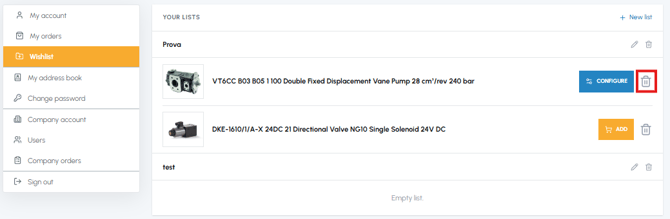
- The product will be removed immediately from the list
Method 2 - From the product page:
- Open the page of the product you want to remove
- Locate the "Add to list" drop-down menu
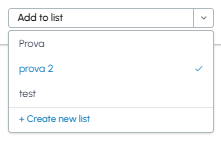
- Deselect the list from which you want to remove the product (click on the name of the list where you see the tick to remove it)
- The product is removed from the list
Note: If the product is present in multiple lists, you will need to remove it individually from each list. Removing a product from the Wishlist does not in any way affect the catalogue or the availability of the product: you can always add it again in the future if necessary.
If you want to delete an entire list in one go, read Can I rename or delete a list? To add a new product, read How can I add a product to the Wishlist?